Cameras, screens and graphics
Cameras, a screen share, video files, logos, nameplates, tickers and lower thirds, staged on Preview.

 ™
™Cut spots, promos and imaging in a real multitrack editor. Run a live show with remote guests and stream it. Record interviews with every voice on its own track. Turn any of it into captioned clips. One subscription, on Windows, in the browser and on your phone.
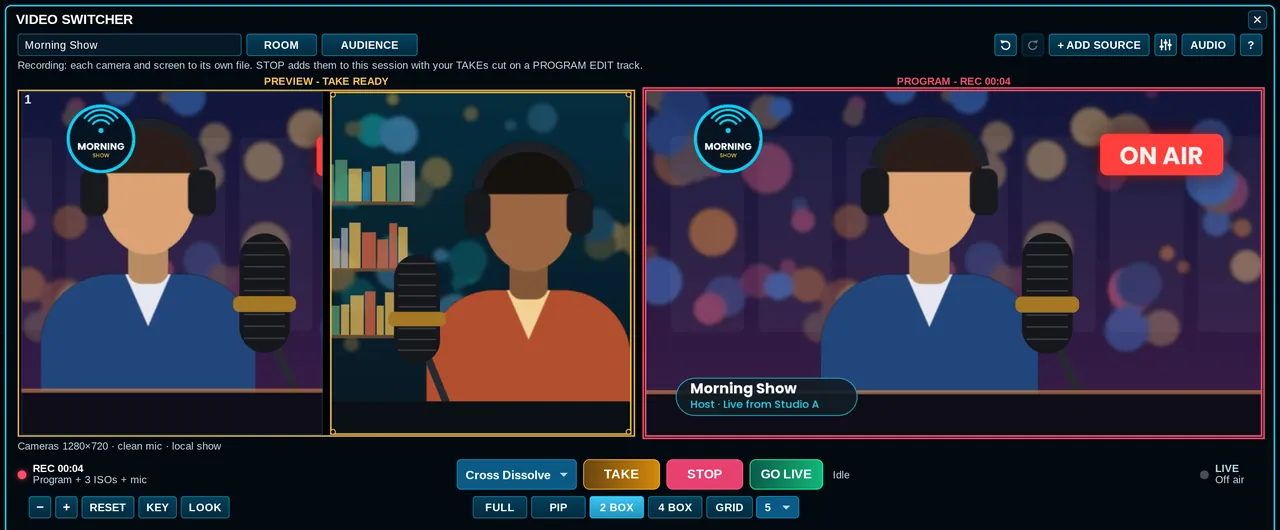
The live switcher in Express: two cameras staged on Preview, the host on Program with a logo and nameplate, recording.
The spot, the live show, the interview and the clips start in the same app and the same session, so the voice you cut for air is the voice under the video.
Cameras, guests from a link, logos and nameplates, a countdown, then record or stream.
Live video switcher →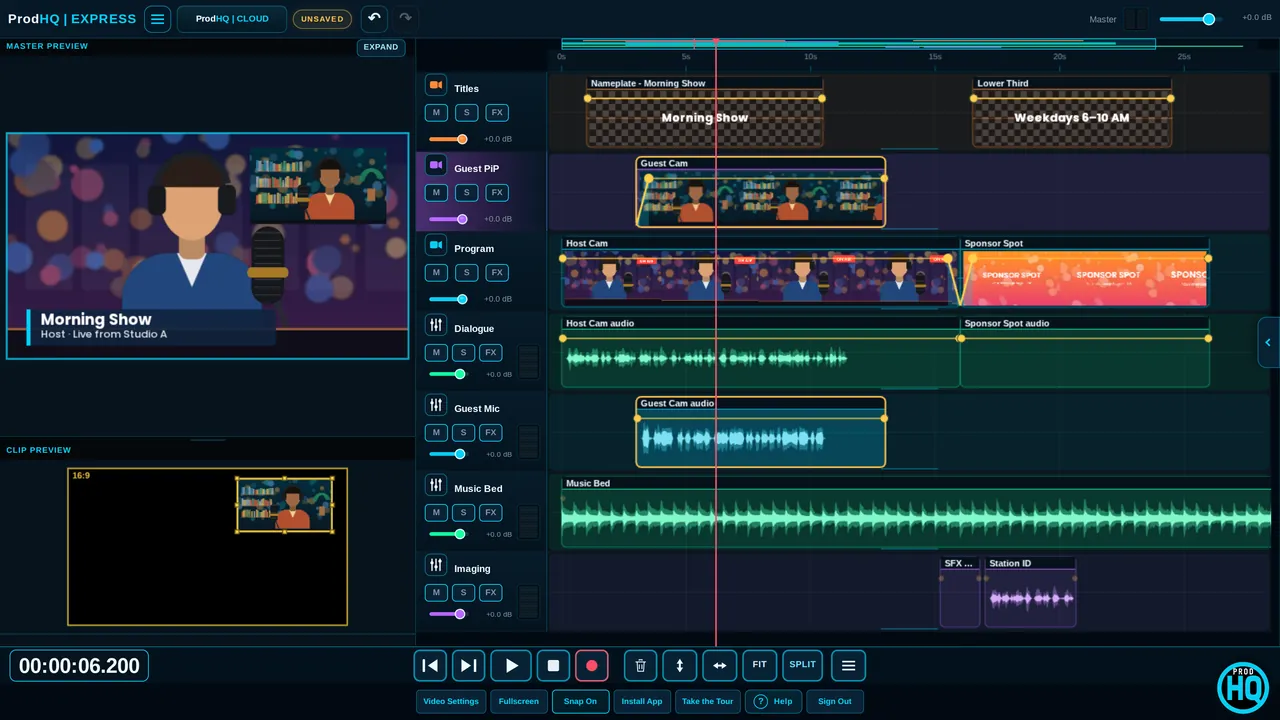
Captions, vertical versions, cutting to whoever's talking, titles and transitions.
Video editing →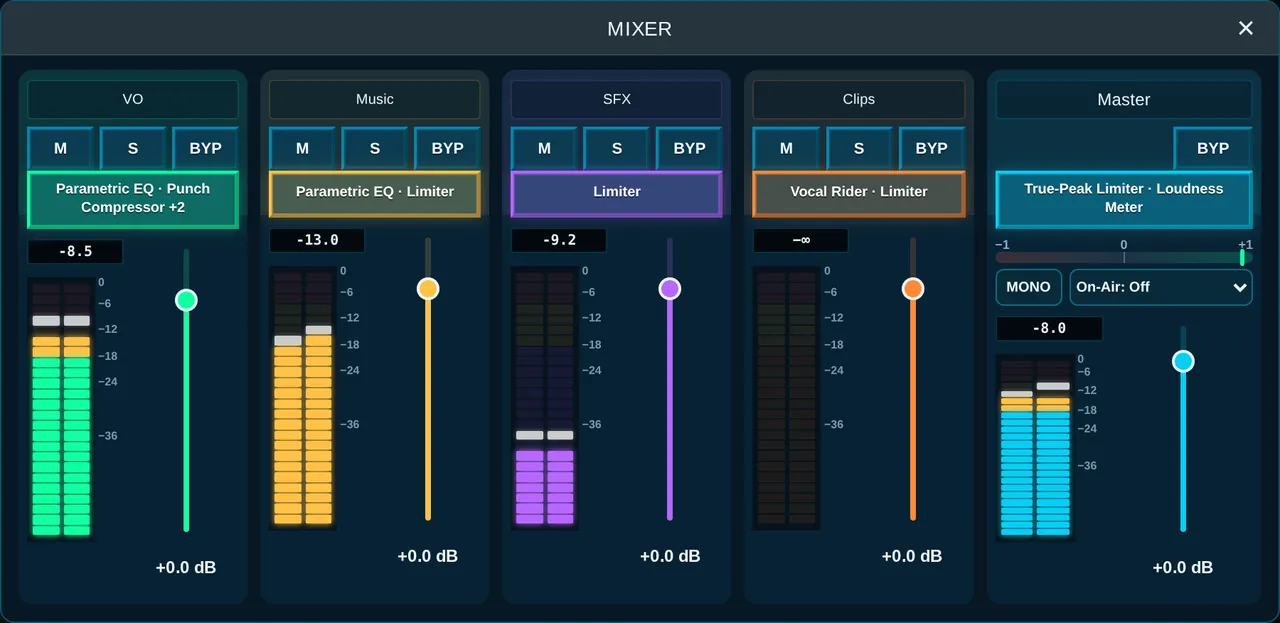
Guests join from a link. Everyone lands on their own track, in full quality.
Podcast recording →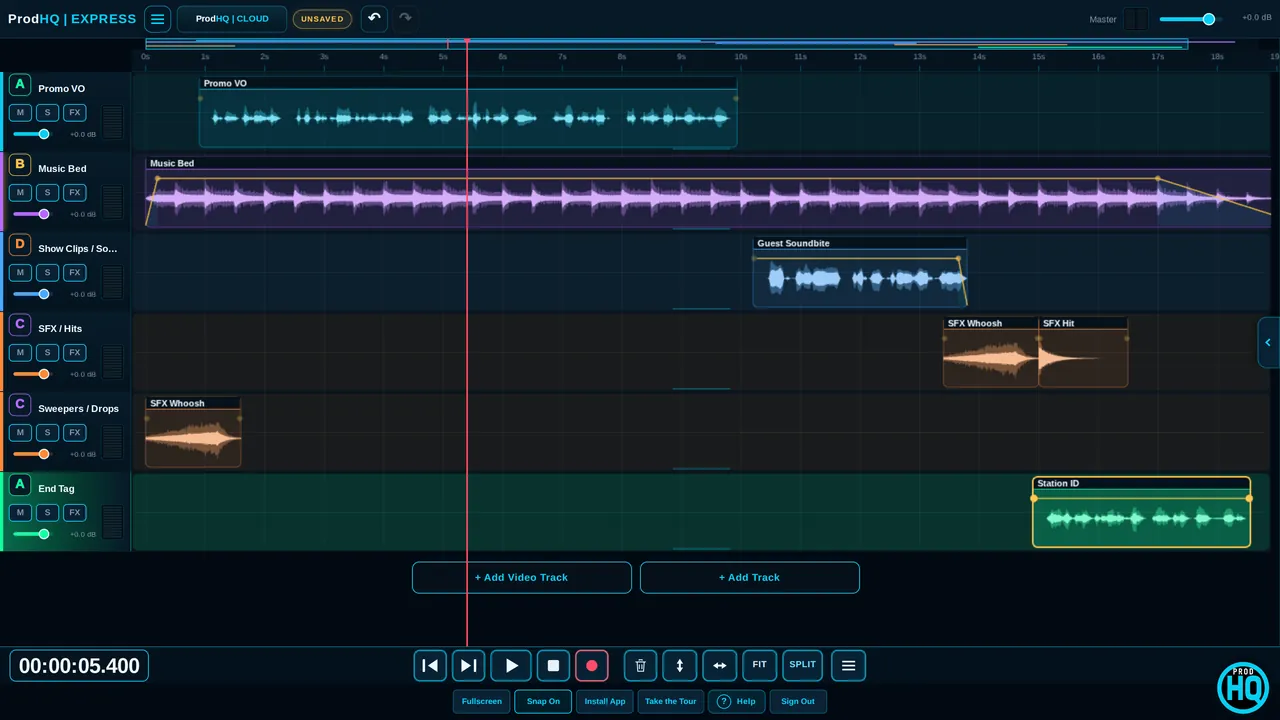
Voice, bed and hits, fit to :30, loud enough for air, and a file automation takes.
Radio production →Stage the next shot on Preview. Press TAKE. Viewers see Program. It works like the control room, in an app.
Cameras, a screen share, video files, logos, nameplates, tickers and lower thirds, staged on Preview.
Guests join on camera from a browser. Viewer links let a producer or client watch.
Record every camera on its own file, or stream to YouTube, Facebook, Twitch or any RTMP address.
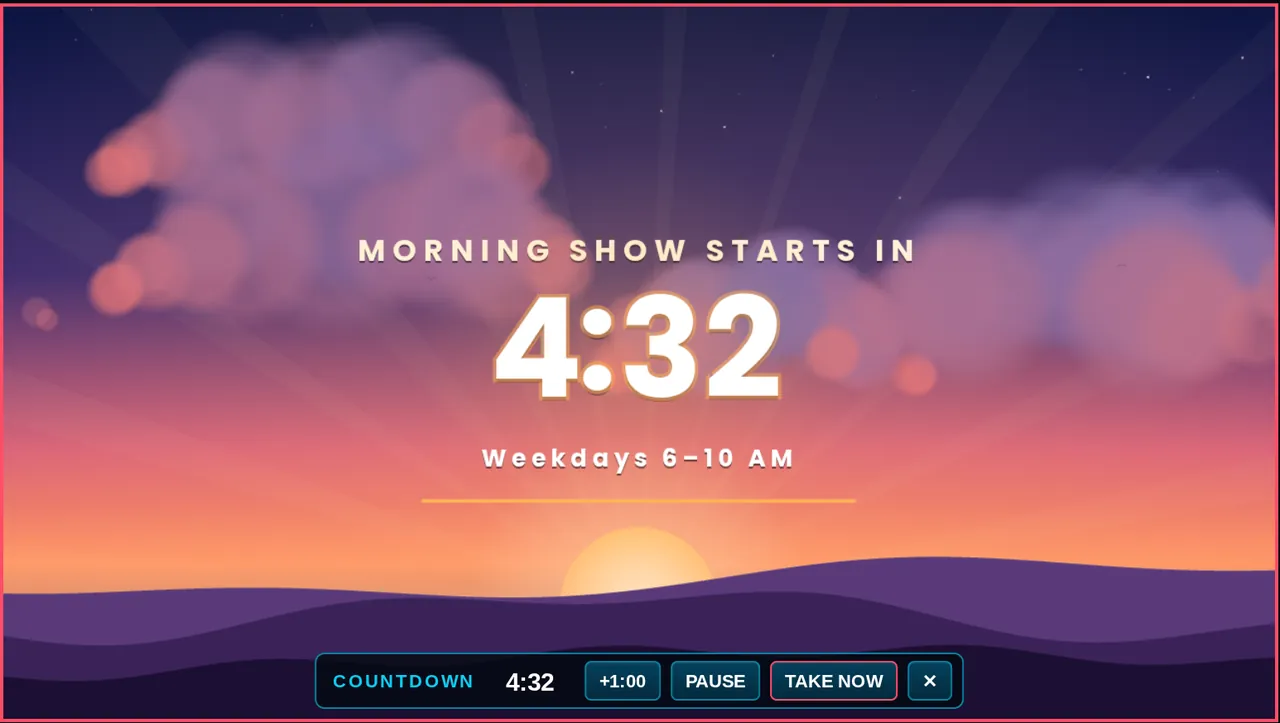
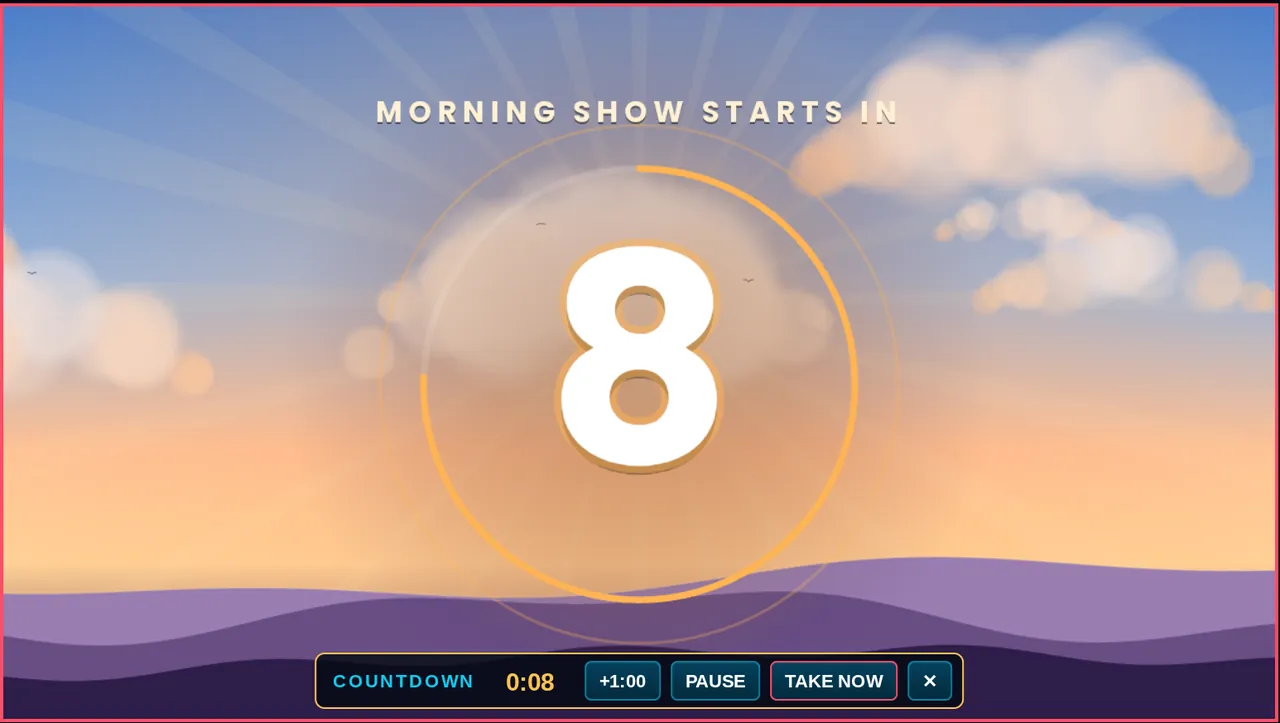 Show countdown
Run a countdown on Program while you set up. The music lands exactly on 0:00, then your opening shot takes itself.
VIDEO workspacePicture-in-picture, titles, nameplates and 55 transitions, with your voice, music and imaging lanes right under the picture.
Send a link. Guests join from a browser. Each person records to their own track, and each guest's own full-quality recording replaces the internet version after you stop.
No app for guests. They pick a mic, run a quick check and ask to join. You admit them.
One WAV per person lands in your session, ready to edit, level and clean up.
Each guest's browser records their own mic at 24-bit, 48 kHz and uploads it in the background.
Push notes to guests' screens in big readable type. Talk to them between takes.
Voice Isolation, noise reduction, de-reverb, de-click and one-knob podcast loudness.
Stacked 9:16 videos, two-speaker splits and punch-in zooms from one wide shot.
PRODUCEStart from a template, fit it to :15, :30 or :60, duck the bed under the voice, and check it before it goes out.
Imaging used to mean a folder of WAVs somebody else made. ProdHQ builds them, then puts them on the show.
Pick a style and a tempo, or open the full set of choices when the bed has to be a specific one. Loop it, or land it on a button ending.
Build-ups, transitions and station hits. Christmas and New Year sweepers pick the bed and the effects, and a word in the script (toast, fireworks, sleigh) calls that sound.
Sixteen pads on the live switcher. Click, drop a file on a pad, or use a Stream Deck. The bumper fades in and out.
One account and one subscription. Sessions move between them.
No separate video plan and no add-ons. Pricing details →
Everything, for one person: Studio on Windows, Express in the browser, Mobile and Tablet. Audio, Sound Design, video, live and edited.
10 or more seats, with company ProdRooms, central admin and support.
Three 30-minute sessions with a verified email. Edit, mix and build like the full Suite. Export and GO LIVE unlock when you subscribe.
New to a live show? Start with the one-page cheat sheet. Something broke? The troubleshooting FAQ.
All three, and that is the point. It began as a radio production desk (spots, promos, imaging, files automation can take) because that is what its maker does for a living, and it grew the way radio jobs did: live video shows with guests, interviews recorded on separate tracks, and clips with captions for social. One subscription covers all of it.
For most production rooms: the audio editor, the live-streaming switcher, the remote-guest recorder and the caption or clip tool. You keep your automation system and your streaming destinations; ProdHQ feeds them.
Studio is the Windows app with the deepest tools: RADIO recording, EDIT, EXPORT, VST3 plugins and H.264 video export. Express runs in Chrome or Edge with no install, including the live switcher, guest rooms and GO LIVE. Mobile and Tablet open the same sessions on the go. Compare them.
Yes. Send a link. Guests join from their browser on a phone or laptop. You admit them from the lobby, then put them on air (live video) or record them on their own track (audio interviews).
Yes. GO LIVE sends Program to YouTube, Facebook, Twitch or any RTMP address. Express can send to several at once. You can record the show at the same time, or only record.
Yes. Export a WideOrbit WAV (44.1 kHz, 16-bit, stereo) with SCOT cart data, intro and end markers. Plain WAV and MP3 are there when automation isn't the destination.
Three 30-minute sessions with every editing tool on, after you verify your email. Export, GO LIVE and Cloud publishing unlock when you subscribe.
Sign in or create an account at My Account, then open Studio, Express or Mobile from there.